
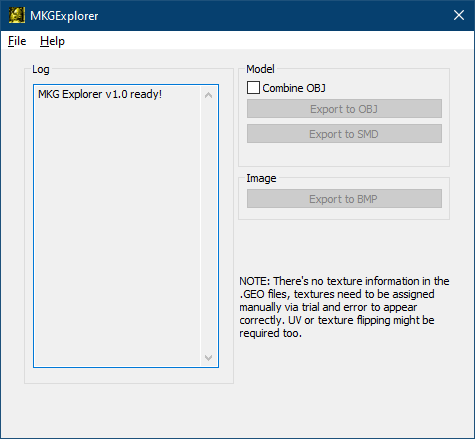
MKGExplorer allows you to convert files from and to Mortal Kombat Gold.
Features
- Converts GEO models to OBJ or SMD
- Converts IMG files to BMP
- Saves any metadata required to rebuild both file types
- 3D model replacing support with an option to generate normals for problematic models
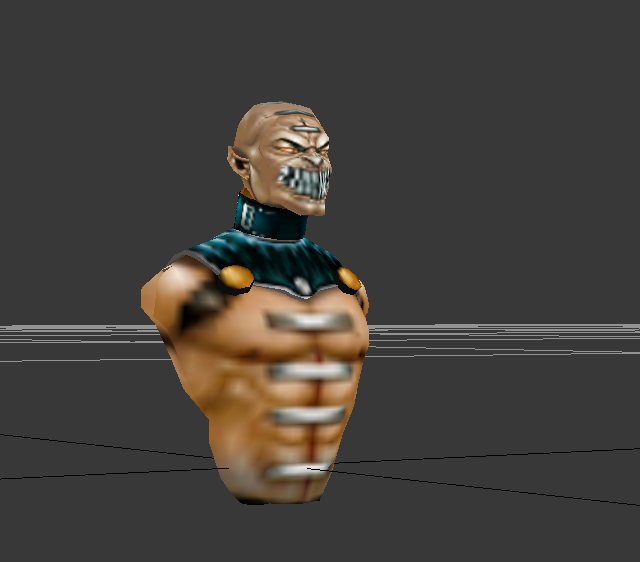
Building GEOs
Getting GEO info
To build a new GEO file an original one needs to be dumped first. To get a rebuildable dump do:
- In the menu bar, do
File->Open->Geometry (.GEO) - Press
Export for Buildingand pick a folder - As a reference, press
Export to OBJ(with combine option ON) if your 3D software doesn’t support batch import of files.
GEO editing
The generated .ini file contains everything about the GEO file, amount of models, model data and so on.
Header Layout
1
2
3
[Build.Settings]
Models = 33
Folder = RE_GEO_models
This section contains header information, Folder field can be edited to change to a different path if needed.
Model Layout
Per each model there’s a model section
1
2
3
4
5
6
7
8
9
10
11
12
[Model0]
Unk = 1
Models = 10

Model0 = model0\0.obj
Model0Unk = 0
Model0Unk2 = 0
Model1 = model0\1.obj
Model1Unk = 0
Model1Unk2 = 1
Model2 = model0\2.obj
# and so on
The Unk value is likely the texture ID from the associated .IMG file.
Models value indicates how many submodels/strips are used. Per model Unk and Unk2 values are unknown. They might be related to transparency or draw order.
Model#NUMBER entry is the path to the .OBJ file that will be used. This is what can be directly edited with any 3D software. Because the geometry is stored as splits it might be hard to figure out which part is what. Use batch import on all .obj files or use the combined .obj file as a reference (Group named G0 is Model0 in the .ini file).
MKGExplorer will generate splits as needed, there’s no need to replace all 10 parts manually in a model. The whole section can be replaced with:
1
2
3
4
5
6
7
[Model0]
Unk = 1
Models = 1

Model0 = Part0.obj
Model0Unk = 0
Model0Unk2 = 0
This will read RE_GEO_models\Part0.obj and generate any splits as needed during GEO creation.
Download Example Model (Jax, JX_GEO)
Creating GEO
Once its done, open the generated .ini file by using File->Open INI. This changes the program to work in build mode.
Create GEO button will be available, press it and save the file. The output GEO is ready to be used in game
Building IMGs
.IMG is the texture container for MKG. There can be multiple textures in a .IMG file.
To get a rebuildable dump do:
- In the menu bar, do
File->Open->Image (.IMG) - Press
Export to BMPand pick a folder
This will save a .txt file (eg. JX_GEO.txt) with list of used BMP images. BMP images must be 16 bit XRGB images! This tool does not convert images.
If using GIMP, in advanced BMP saving options pick X1 R5 G5 B5 to create a compatible file.
To build a .IMG, press Build from TXT in the Image (.IMG) area. Pick the .txt file then the destination and the tool will load any listed images from the same folder as the .txt file.